Bài viết được kiểm tra
bởi iThenticate

Là thành viên của
Crossref


Để đăng ký tài khoản với tạp chí, nhấp chuột vào liên kết Đăng ký (Register) ở góc trên cùng bên tay phải màn hình của quý vị.
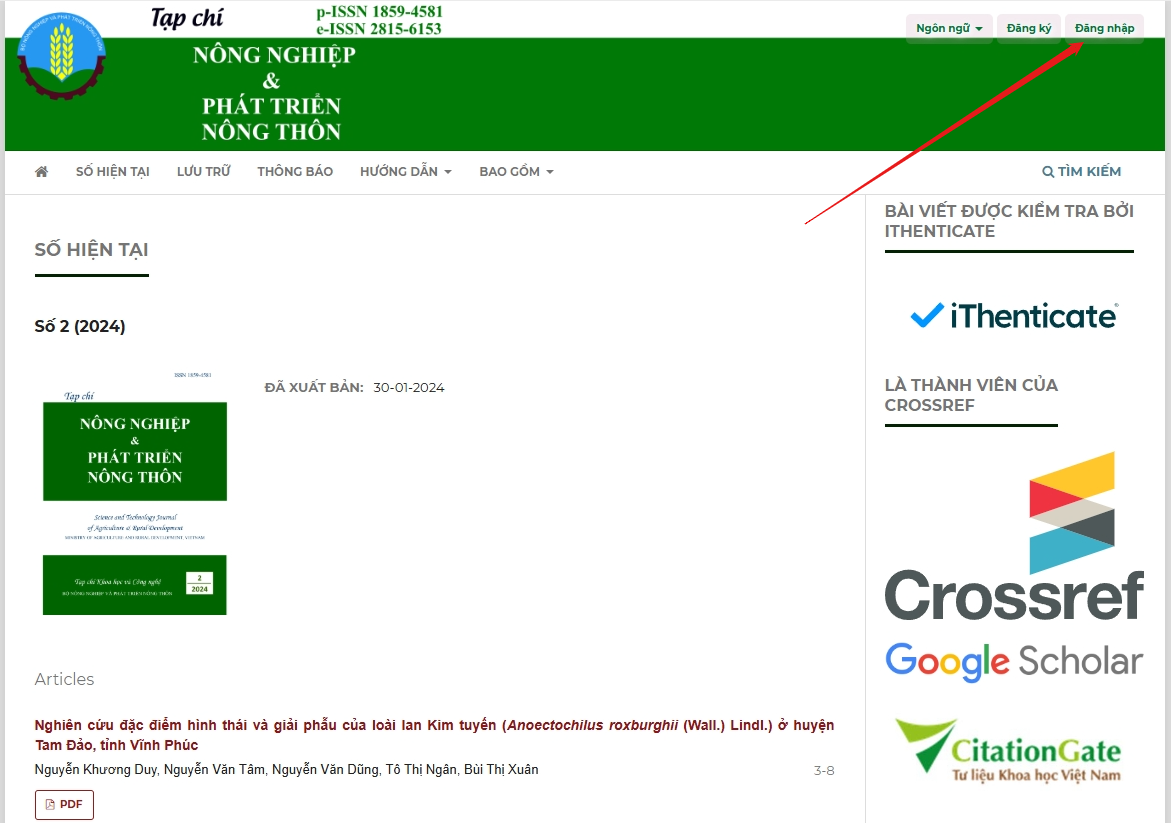
Thao tác này sẽ mở ra Biểu mẫu đăng ký để người dùng hoàn thành tất cả các thông tin được yêu cầu.
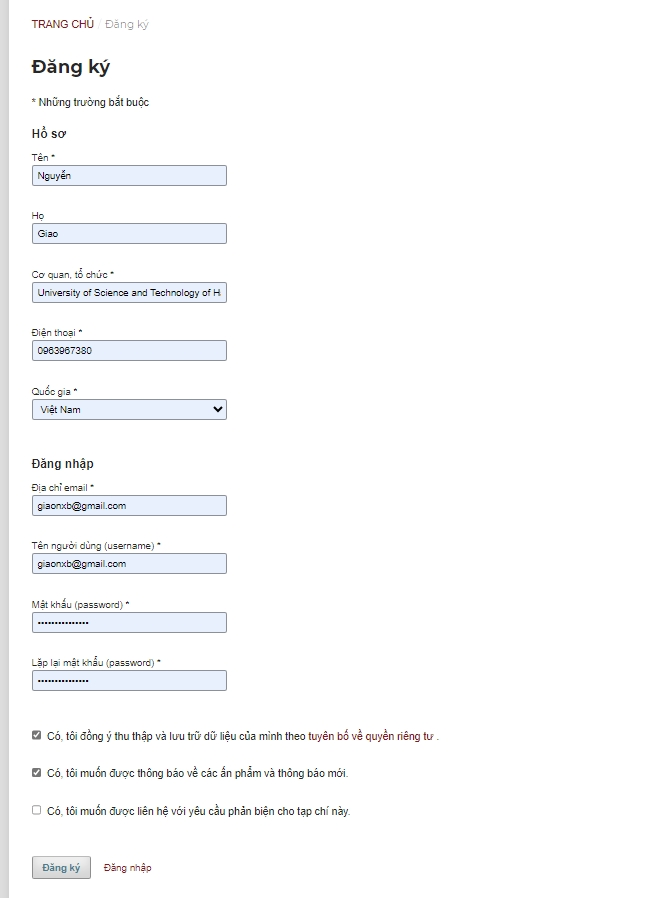
Tất cả các trường có dấu * như (Tên, Họ, Chi nhánh, Quốc gia, E-mail, Tên người dùng, Mật khẩu, Lặp lại mật khẩu) là bắt buộc.
Người dùng sẽ được tự động đăng ký làm Bạn đọc và Tác giả. Ngoài ra người dùng cũng sẽ được cung cấp tùy chọn để đăng ký làm Người phản biện giúp tạp chí.
Người dùng sẽ không thể tự đăng ký các vai trò Biên tập (ví dụ: Biên tập viên, Biên tập viên chuyên mục, Biên tập viên, Biên tập viên bản thảo …). Nếu bạn cần đăng ký ở cấp độ đó, hãy liên hệ với Quản lý Tạp chí hoặc Quản trị viên Trang web hiện tại.
Nếu cần hỗ trợ thêm, xin vui lòng liên hệ với Ban biên tập và Hỗ trợ kỹ thuật tại trang Liên hệ của tạp chí.
Để xem và chỉnh sửa hồ sơ của bạn, hãy đăng nhập và nhấp vào liên kết Tên người dùng của bạn từ góc trên bên phải. Chọn liên kết Xem hồ sơ.
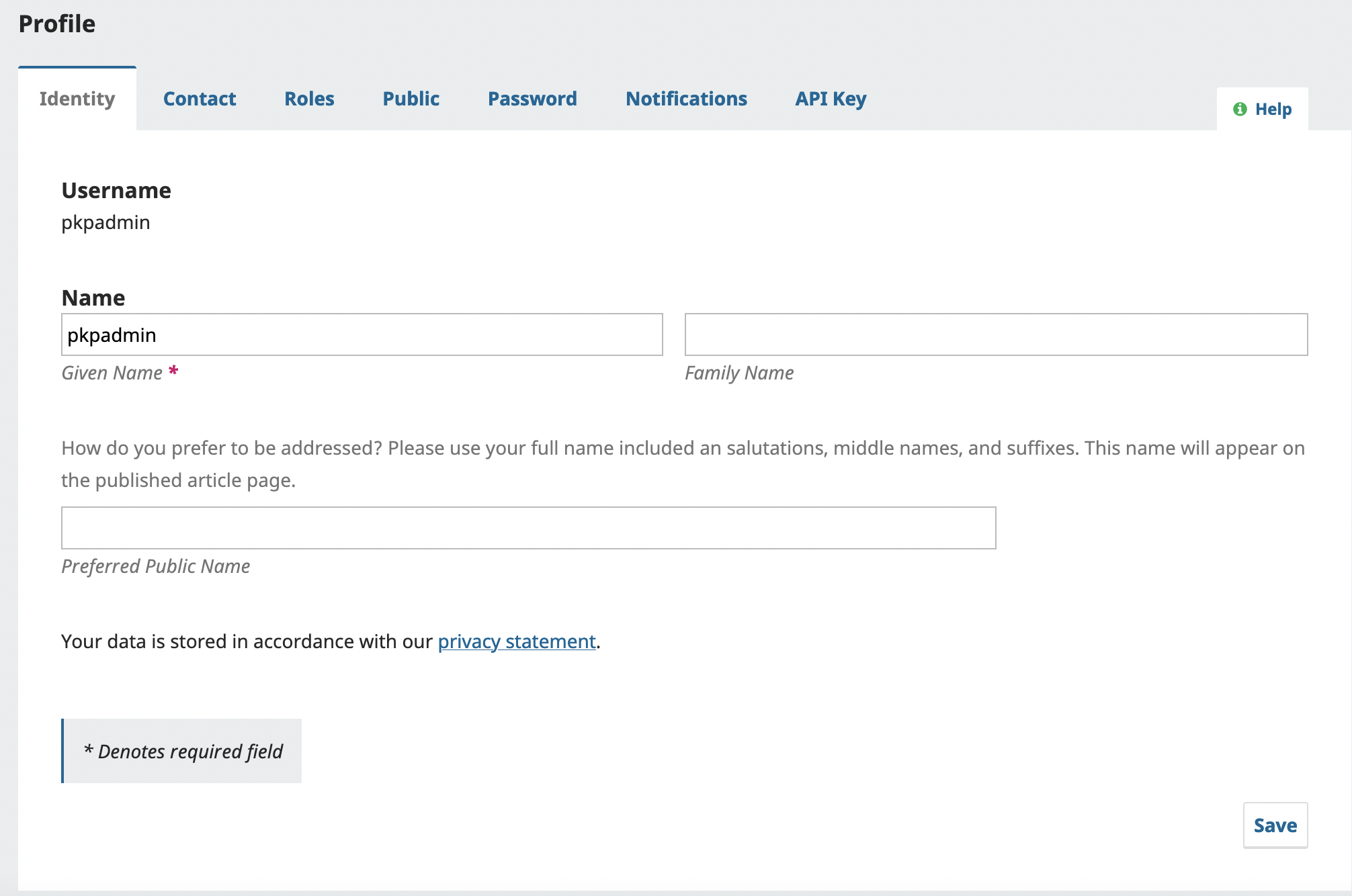
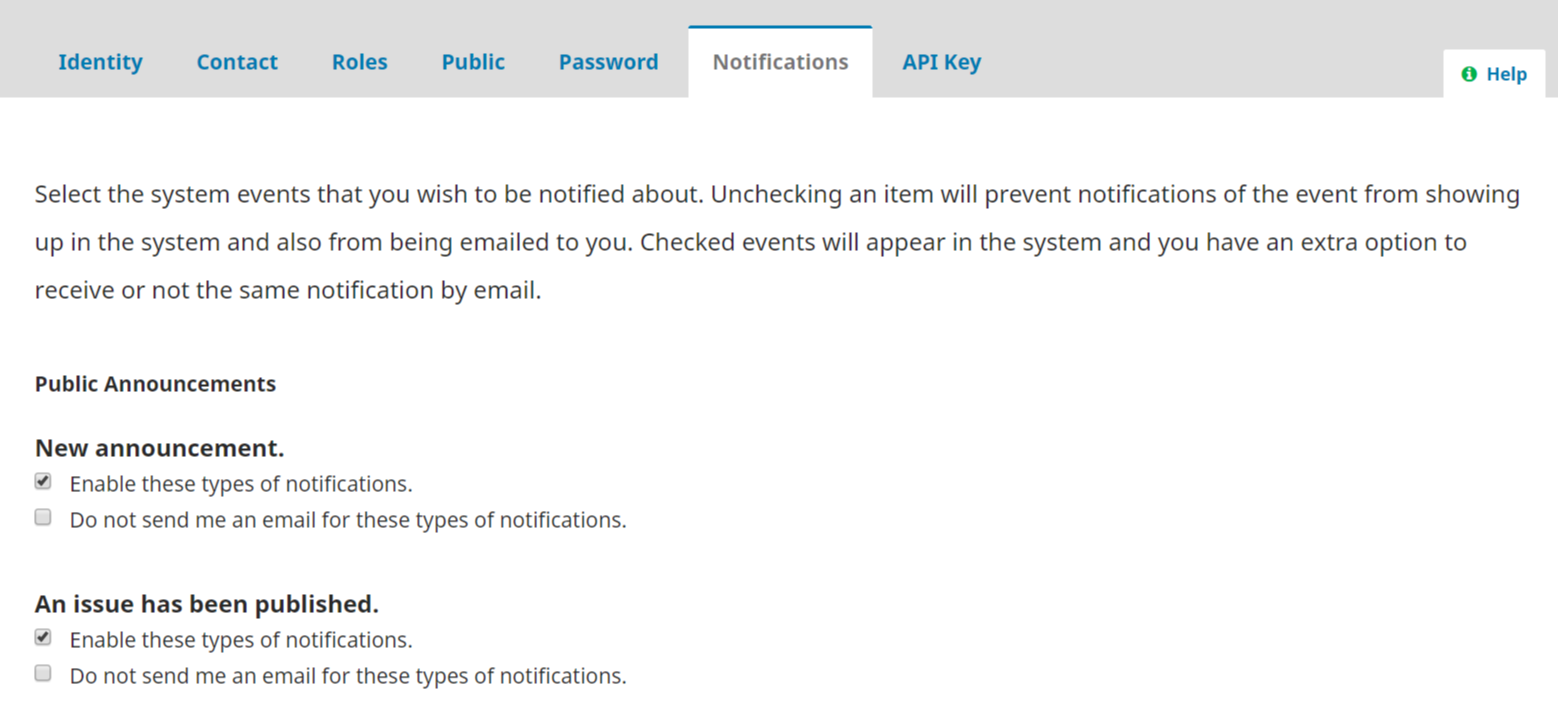
Từ đây, bằng cách chọn các tab khác nhau, người dùng có thể cập nhật thông tin cá nhân, thông tin liên hệ, thay đổi vai trò, thêm hình ảnh cá nhân (một số tạp chí có thể xuất bản cùng với bài viết của tác giả hoặc trên danh sách biên tập viên), xác định cài đặt thông báo, hoặc cập nhật mật khẩu của người dùng.
Xin lưu ý , người dùng có thể định cấu hình loại thông báo nào bạn nhận được từ tạp chí khi các sự kiện xảy ra, chẳng hạn như số tạp chí mới được xuất bản hoặc có hoạt động trên bài gửi mà bạn tham gia.
Người dùng có thể đặt lại mật khẩu của mình bằng cách:
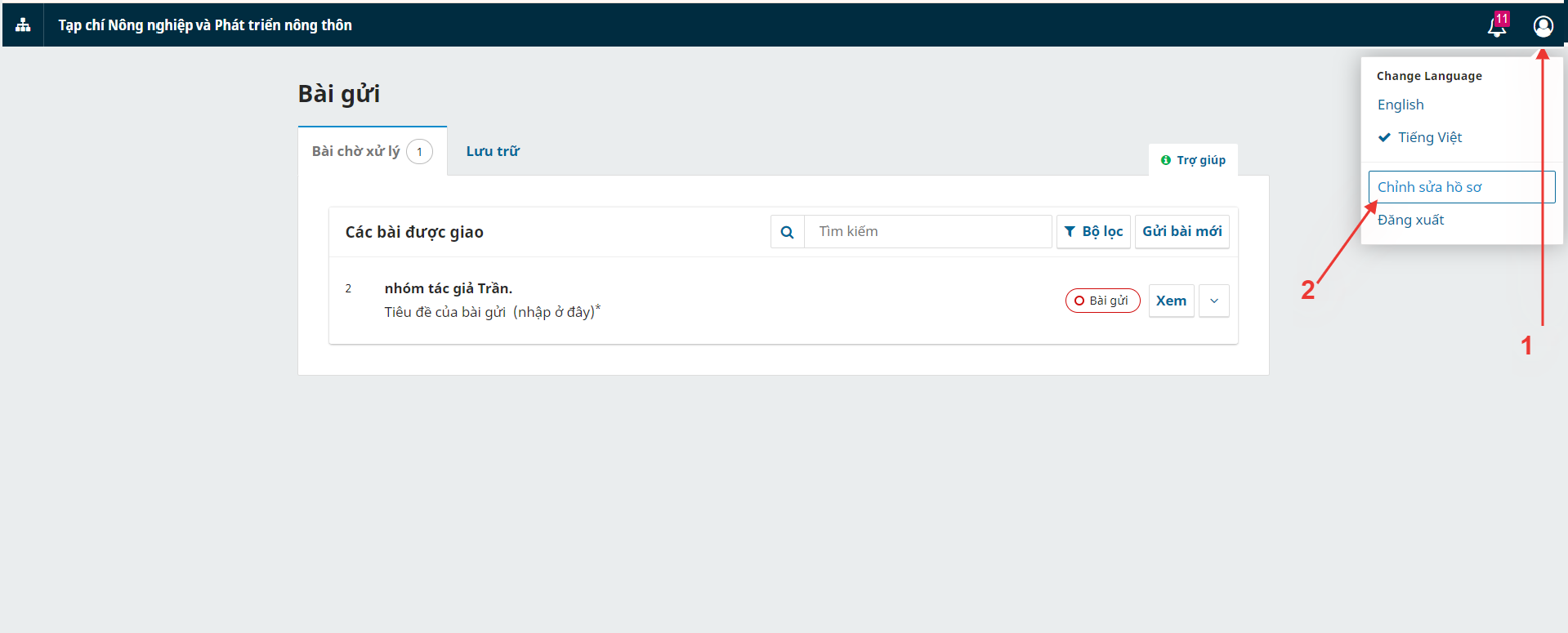
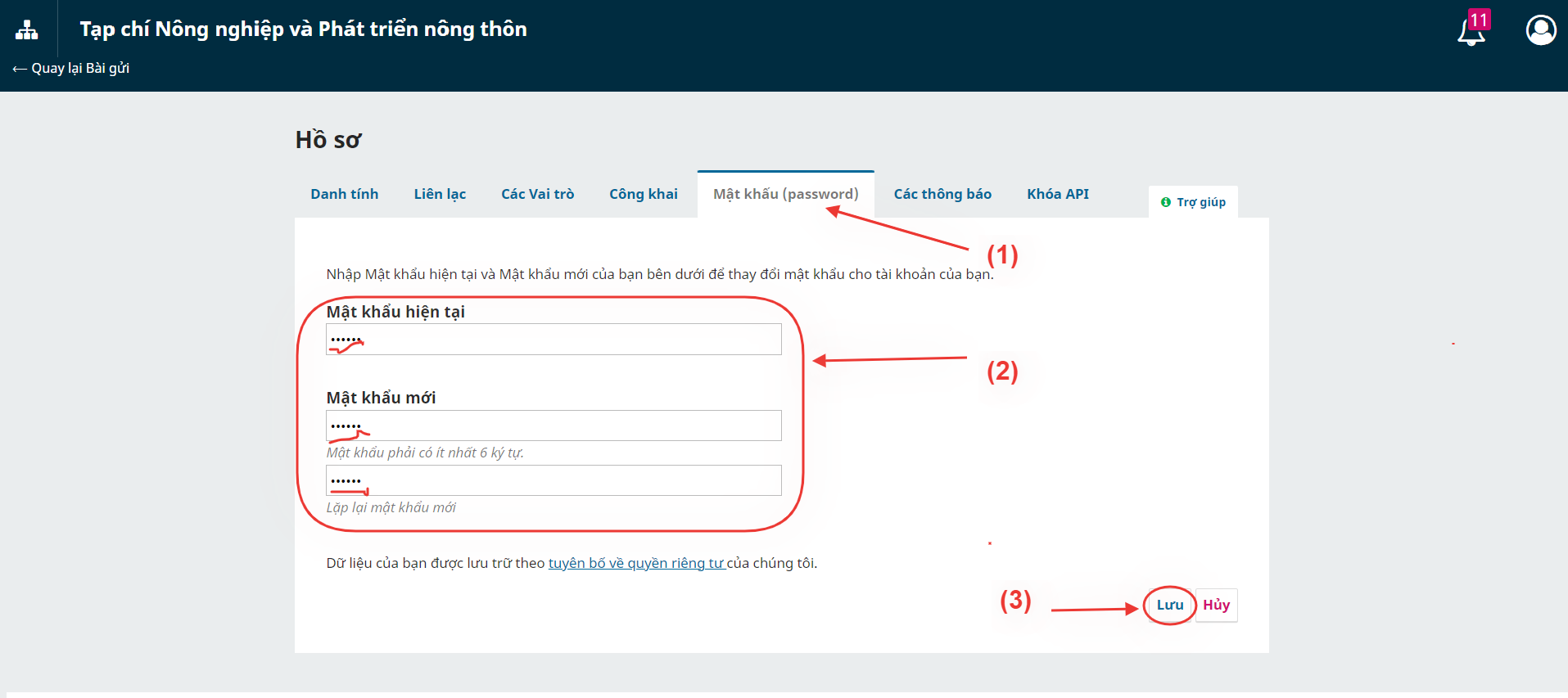
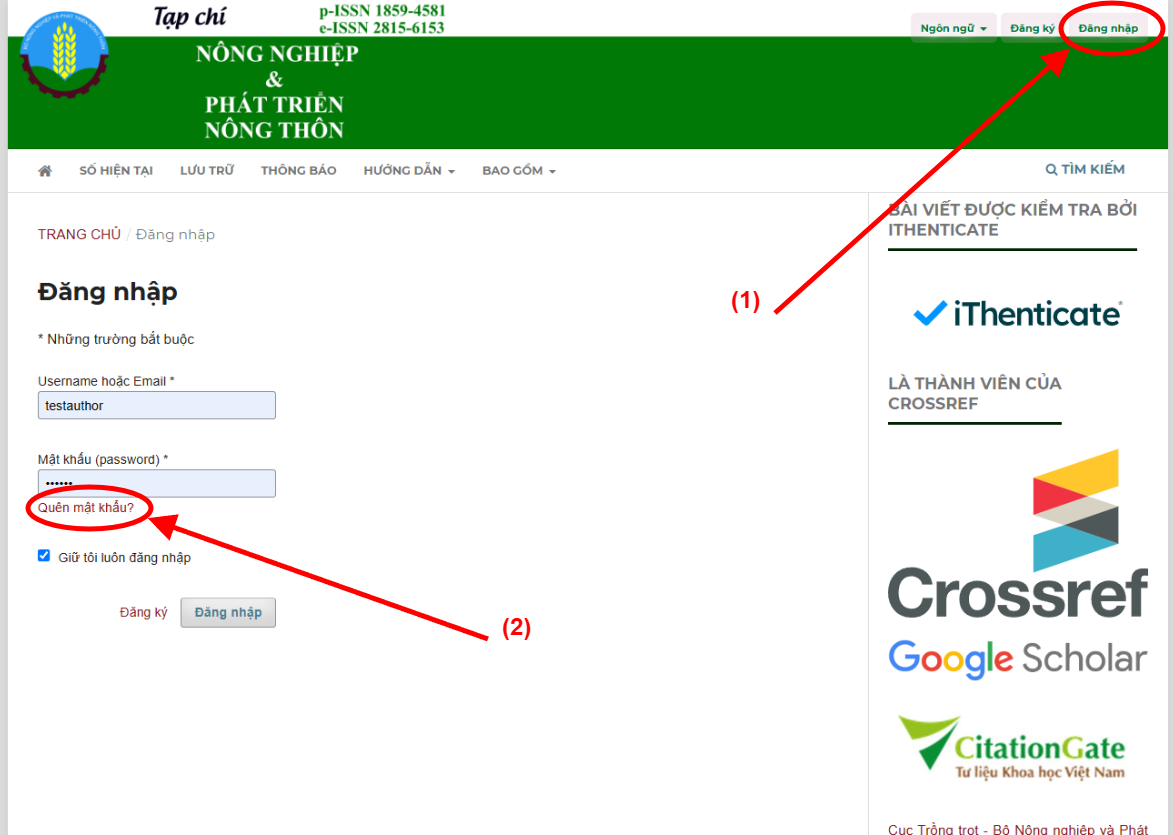
Trường hợp quên mật khẩu, người dùng khôi phục thông qua 3 bước sau:
Đầu tiên, người dùng cần có một yêu cầu về việc quên mật khẩu:
Tiếp theo, người dùng cần kiểm tra hộp thư và xác nhận yêu cầu đổi mật khẩu:
Và bây giờ người dùng có thể thực hiện các thao tác tiếp theo, ghi nhớ hoặc copy mật khẩu tạm thời mới của mình và đăng nhập:
Nếu cần hỗ trợ thêm, xin mời quý tác giả vào mục Liên hệ của tạp chí.





Tổng Biên tập: TS. ĐÀO XUÂN HƯNG
Phó Tổng biên tập: THS. KIỀU ĐĂNG TUYẾT
Giấy phép hoạt động báo chí số: 23 /GP-BVHTTDL, ngày 25 tháng 4 năm 2025.
© Bản quyền thuộc Tạp chí Nông nghiệp và Môi trường. Không được phép sao chép khi chưa được chấp thuận bằng văn bản.